
Getting started
Create an account, verify your email, set up your profile, join an organization, and start your first course.
On this page
Setting up takes a few minutes. You need an email address you can open, and if you are joining through a school or workplace, the 6-digit join code your administrator gave you.
1. Create your account#
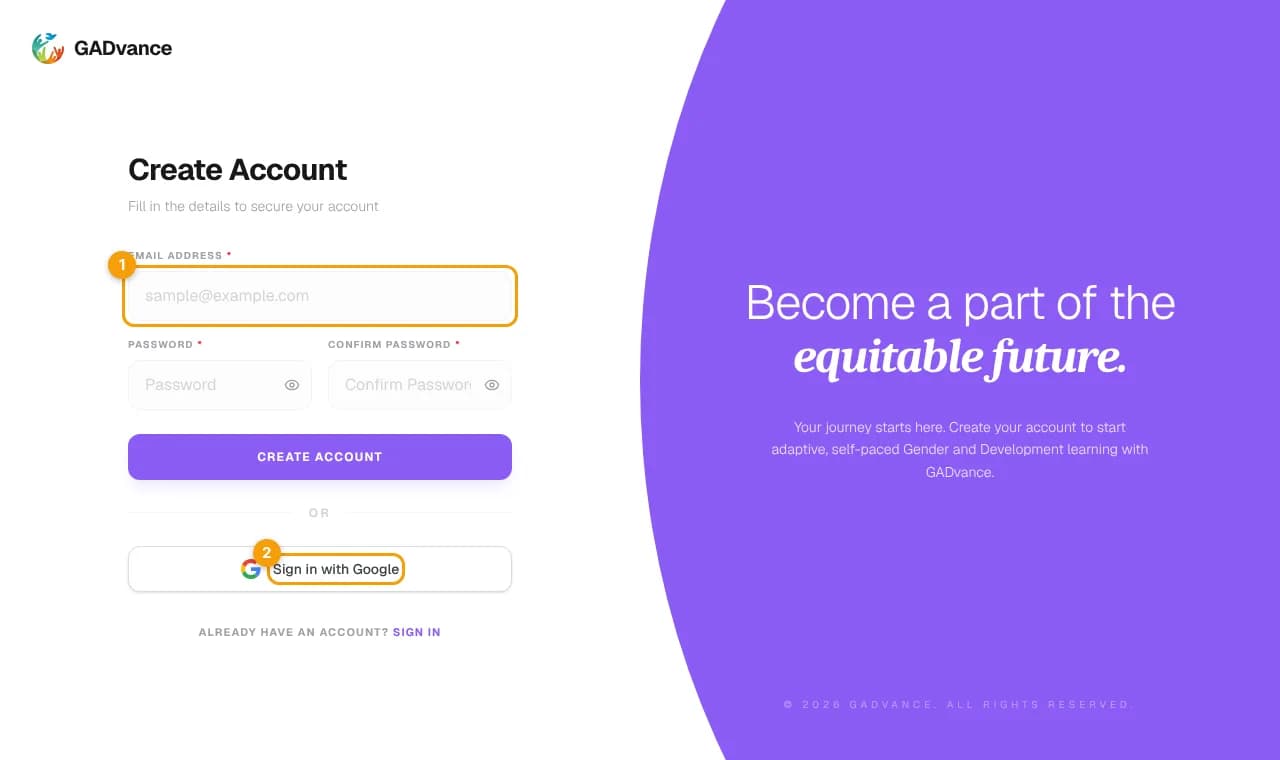
Open the sign-up page
Select Sign Up in the top navigation, or go to the sign-up page.Choose how to sign up
Enter your email and a password, or continue with your Google account. With Google you can skip email verification because Google has already confirmed your address.
2. Verify your email#
Open the verification email
GADvance sends a message titled "Verify your email to finish creating your GADvance account".Select Verify email address
The link opens GADvance and activates your account.
The link expires after 30 minutes
3. Set up your profile#
The first time you sign in, a short onboarding asks for three things:
Personal details
Your first and last name are required. Middle name, age, gender, and birthday are optional.Contact and location
Optional. Your region, province, city or municipality, and barangay.Photo and bio
Optional. Add a profile photo (JPEG or PNG, up to 5 MB) and a short bio.
You can change these details later from your profile in the workspace.
4. Join your organization#
Skip this step if you are learning on your own.
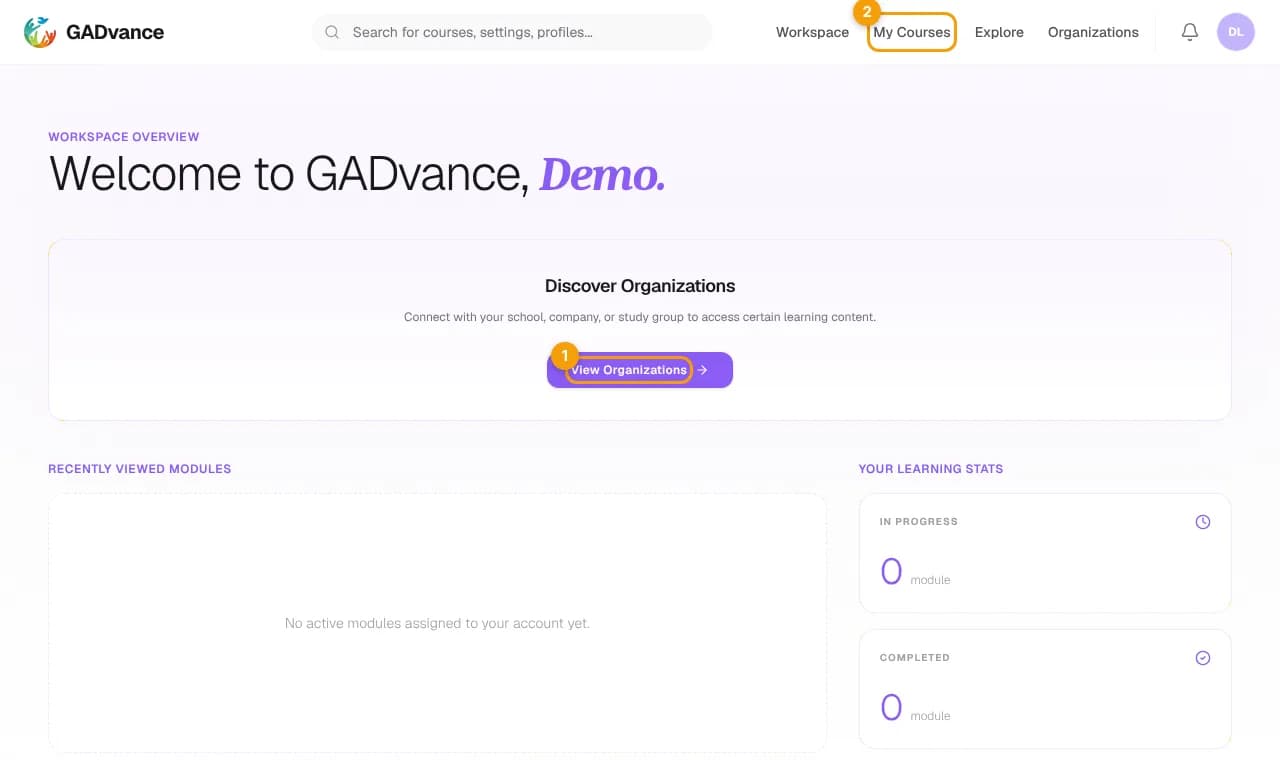
Use the invitation link or code
Open the invitation link from your administrator, or go to Organizations in your workspace and choose Enter Code Manually.Enter the 6-digit join code
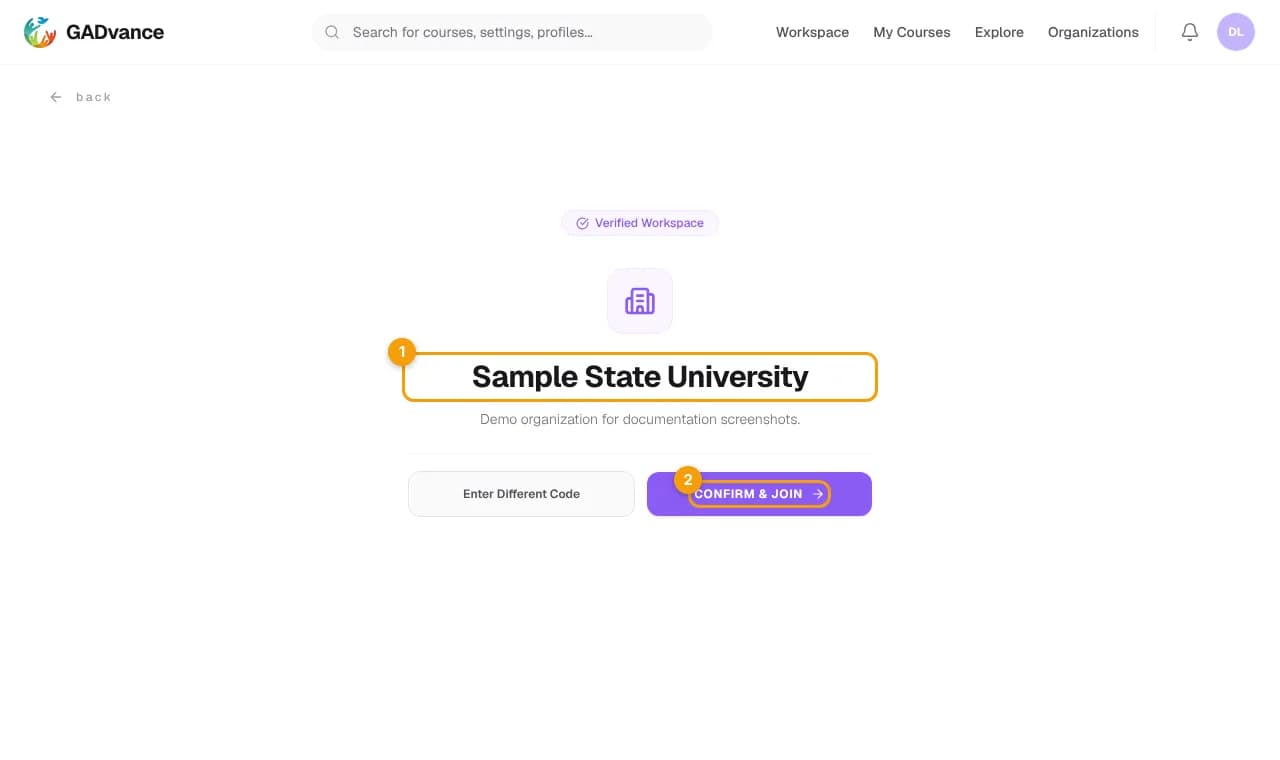
GADvance shows the organization so you can confirm it before joining.Select Confirm & Join
The organization's learning plans now appear for you.
5. Find a course and enroll#
Open Explore
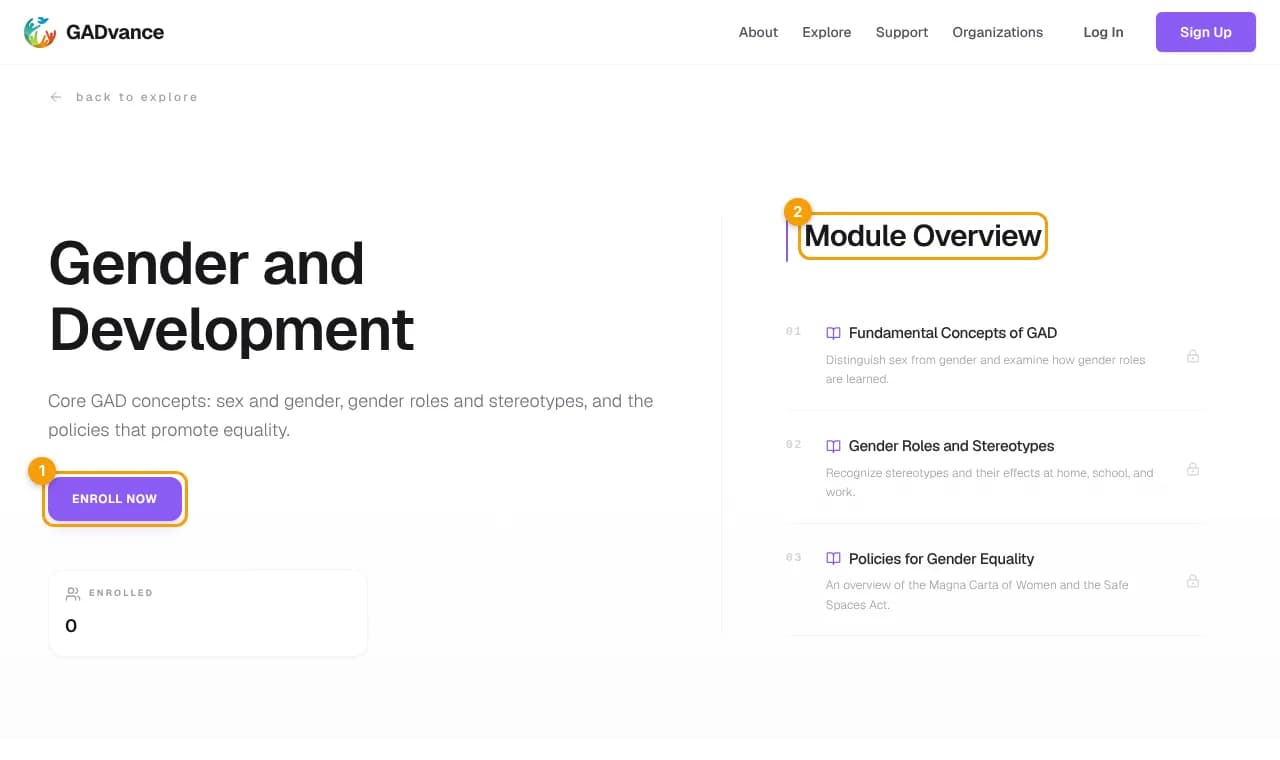
Browse the available learning plans (courses) and open one to see its modules.Enroll
Select Enroll now and confirm. Enrolled courses appear under My Courses.
6. Start learning#
Open a module to begin. Most modules start with a pre-test, then lessons and checkpoint quizzes, and end with a post-test. Your place is saved as you go, so you can leave and resume later. See Assessments and results for what to expect from each assessment.
Need a hand?